
MX™ Connect Boarding
Learn how to onboard a merchant in MXC with this essential guide, covering key configuration screens, risk checks, pricing, billing, equipment setup, and required documents.
Introduction
The MXC Boarding process enables partners and internal teams to create and submit merchant applications, configure acquiring products (like TSYS and Fiserv), and provision additional services such as Passport and Priority Payroll. This guide summarizes the end-to-end workflow, mandatory inputs, dependencies, and delivery steps for a successful boarding experience.
In this guide, you’ll find:
- A page-by-page review of the App Assistant.
- Required fields and dependencies at each step.
- Configuration steps for TSYS and MX Merchant.
- Delivery page functionality, including percentage completion, send options, and template requirements.
- Additional mentions of Passport and Priority Payroll.
MXC Merchant Onboarding
Prerequisites
- Partner Setup: The merchant must be boarded under an existing partner with an active agreement for the relevant product.
- Agreement Configuration: Ensure the partner’s agreement and pricing schedules are set up for the intended product.
- User Permissions: You must have the appropriate permissions to board merchants.
Initiating a New Application
The process begins in the Applications module.
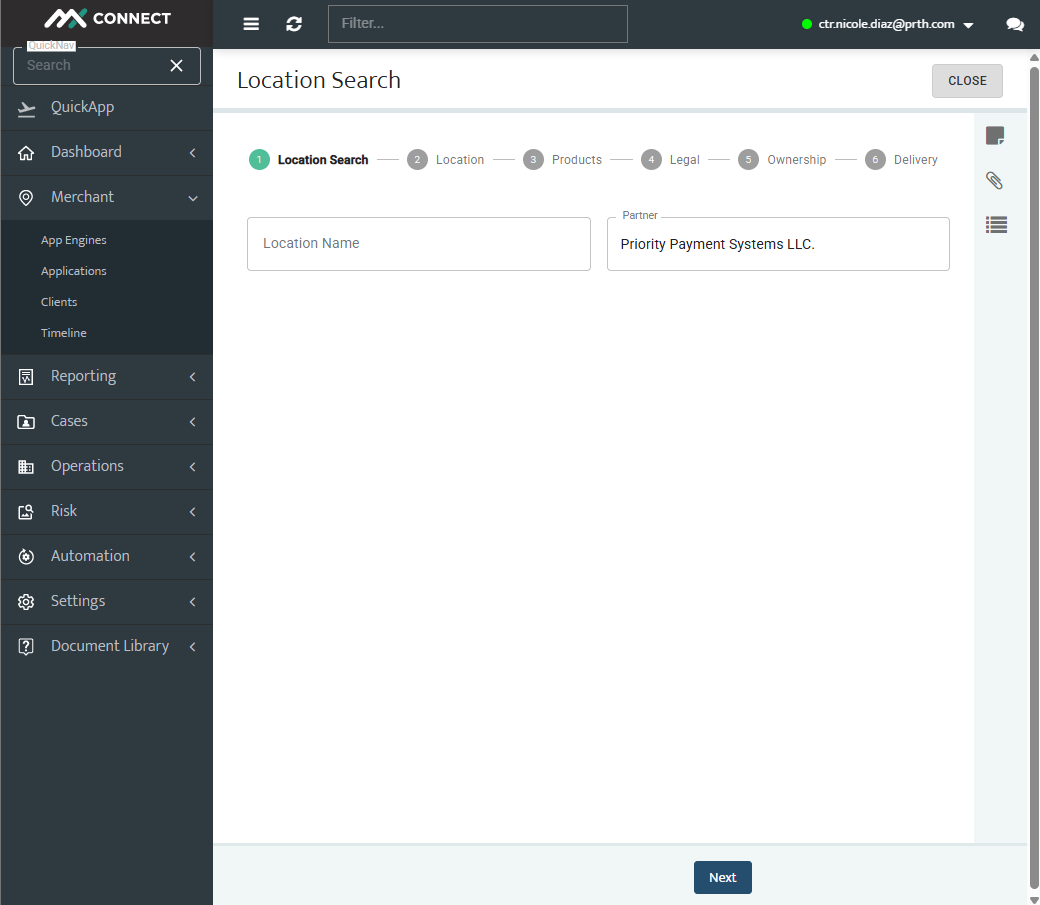
- Go to Merchants> Applications in the left navigation panel.
- Select Add (+) in the button to the bottom right.
- Enter the merchant’s Location Name .
- Select the Partner under which the merchant will be boarded.
- Select Next.
Location and Business Details
This page captures merchant location and business identity.
| Field | Required | Notes / Dependencies |
|---|---|---|
| DBA (Doing Business As) | Yes | Customer-facing business name. |
| Location Phone | Yes | Primary phone number for the location. |
| Market Segment | Yes | Determines available Industry Types. |
| Industry Type (MCC/SIC) | Yes | Defines the Merchant Category Code (e.g., 5411 Grocery). |
| Website | Yes | Must be unique for underwriting (validated by G2). |
The app assistant integrates with Google Places to auto-fill address, website, and business type information. Confirm or update any details manually.
Product Selection
The Product Selection page determines which services the merchant will use.
Steps:
- Select Add Product.
- Select TSYS as the acquiring product.
- Add MX Merchant (MXM) (recommended).
- Optionally add Passport and/or Priority Payroll.
- Products display with status icons:
- Green check mark = added.
- Red X = configuration required.
Product-Specific Configuration
A. TSYS (Acquiring Product)
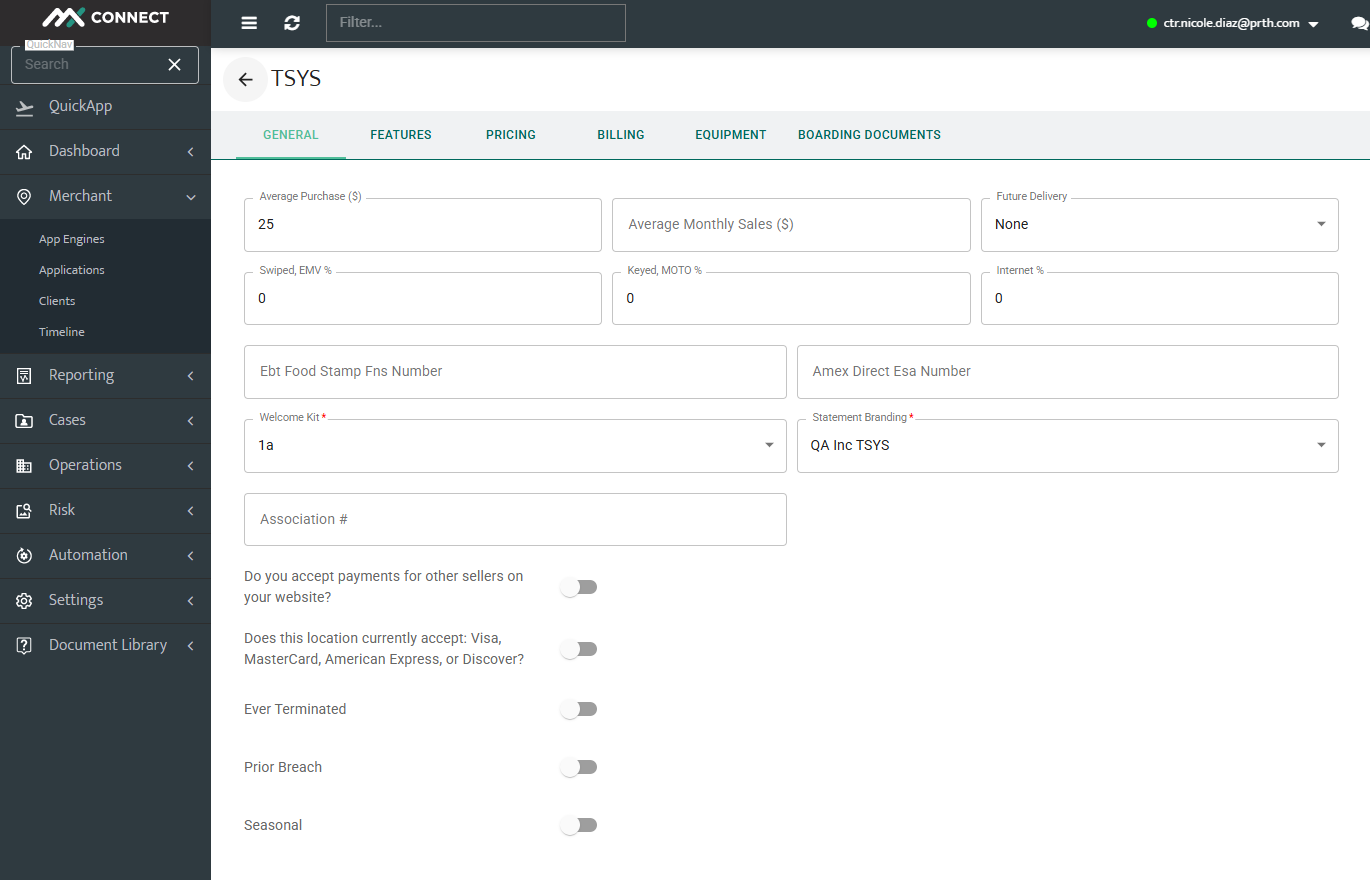
TSYS must be configured with risk, pricing, and billing details.
| Category | Field | Required | Notes |
|---|---|---|---|
| Risk | Average Monthly Sales | Yes | Use merchant statements. |
| Average Purchase | Yes | Average transaction value. | |
| Transaction Parameters | Yes | Swipe, Key, Internet must total 100%. | |
| Features | Card Types | Yes | Visa, Mastercard, Amex OptBlue, Discover. |
| Pricing | Template | Yes | Use global or partner-specific templates. |
| Billing | Routing & Account Number | Yes | Bank lookup validates account. |
| Sponsor Bank | Select sponsor bank | Yes | Choose the merchant’s bank. |
General
- Average Purchase / Monthly Sales: Enter typical ticket and expected volume.
- Transaction Channels (% Swiped / Keyed / Internet): Must total 100%.
- Card Acceptance: Confirm Visa/MC/Amex/Discover acceptance.
- Risk Flags: Indicate if merchant was ever terminated or breached.
- Seasonal Merchant: Specify open/closed months if seasonal.
- CNP Questionnaire: Required if Keyed + Internet > 20–25%.
- Billing Method: Monthly, yearly, or one-time.
Tip: Higher card-not-present volume triggers additional underwriting questions.
Features
- Enable all card types merchant accepts.
- Enable PIN Debit, EBT, or direct relationships if applicable.
- Optional: Daily discount, next-day funding, ACH method changes (requires underwriting).
- Select the correct Sponsor Bank.
Pricing
- Use corporate pricing templates or custom templates with approval.
- Enter transaction, monthly, chargeback, compliance, and third-party fees.
Billing
- Enter Billing Account for fees and Funding Account for deposits.
- Separate accounts optional; checking or savings.
Equipment
- Select merchant equipment/application profile.
- Add notes for special instructions if needed.
Required Documents
- Driver’s license, corporate filings, 501C form (if nonprofit)
- Bank verification/voided check, bank statements, tax returns, W-9
- Processing statements (if switching processors), financial statements
Best Practice: Upload clear, current documents in PDF/JPG/PNG.
Underwriting & Risk Considerations
- Complete CNP questionnaire for high Keyed + Internet volume.
- Document seasonal months for accurate risk and funding.
- Provide details for any terminated or breached merchants.
B. MX Merchant (MXM)
MXM defines merchant-facing functionality and billing setup.
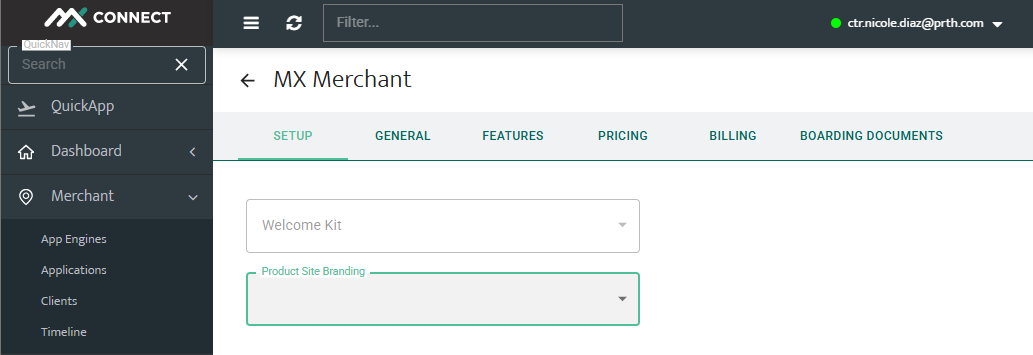
| Category | Field | Required | Notes |
|---|---|---|---|
| Features | App Store Visibility | Recommended | Set all to Visible. |
| Billing | Third Party Statement | Yes | Link to TSYS acquiring product. |
| Branding | Site/Product Branding | Optional | For overlays and white-label branding. |
| Users | Admin and Controllers | Yes | MFA triggers two-factor setup for users. |
C. Priority Payroll
Payroll setup is optional but requires entity and employee-level data.
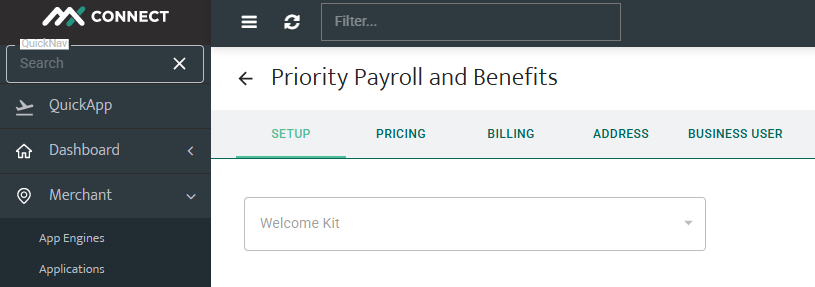
| Category | Field | Required | Notes |
|---|---|---|---|
| Pricing | EIN Fee | Yes | Per legal entity. |
| Employee Fee | Yes | Per employee enrolled. | |
| Billing | Third Party Statement | Yes | Fees appear on TSYS statement. |
| Contacts | Payroll Controller | Yes | Name, email, and phone are required. |
D. Passport (Optional)
Passport is an optional add-on.
- Provides payback and advanced processing features.
- May be disabled in UAT environments.
- Not required for core boarding.
5. Legal and Ownership Information
This section requires legal entity and owner details for underwriting.
| Field | Required | Notes |
|---|---|---|
| Legal Entity Name | Yes | Must match EIN. |
| Entity Type | Yes | LLC, Sole Proprietor, Corporation, etc. |
| EIN / Tax ID | Yes | Use unique IDs for testing. |
| Owner Full Name | Yes | Includes first, last, and middle (optional). |
| Date of Birth | Yes | Required for underwriting. |
| Social Security Number | Yes | Full or last 4 digits, depending on workflow. |
| Driver’s License | Yes | Number and issuing state required. |
Delivery Page
Percentage Bar
- Displays completion status of the application.
- Merchant Facing Application (MFA): Can be sent if incomplete (<100%).
- Wet Signature Upload: Requires full completion (100%).
Required Fields
- Site Template – defines merchant-facing branding.
- Email Template – used for the MFA invitation email.
- Recipient Email Address – merchant’s primary contact for MFA.
Send Options
- Send Application (MFA – Digital):
- Sends the merchant a secure link to our Merchant Facing Application (MFA). Here, you can verify if the information keyed on the application and make corrections if needed.
- Merchant reviews, updates, and signs electronically via HelloSign.
- Updates synchronize to MXC in real time.
- Upload Signature (Wet Signature – Paper):
- Requires a completed application.
- ISO uploads a scanned signed PDF.
- Application bypasses MFA and proceeds directly to underwriting.
Updated 30 days ago