
MX™ Connect Pricing
Learn how to use Pricing Templates to create and manage merchant pricing, including templates, fee setup, and flat, pass-through, and tiered models.
Introduction
Pricing Templates in MX Connect are used to configure and manage merchant pricing. Globally Shared Pricing Templates are available to all partners and can be duplicated, renamed, and modified for partner-specific needs.
This guide explains how to navigate the Pricing Templates page, edit template details, and configure fees. It also provides a brief explanation of the three supported pricing models: Flat Rate, Pass-Through, and Tiere.
In this guide, you’ll find:
- The purpose and benefits of Globally Shared Pricing Templates
- How to navigate and edit templates
- The different pricing models available
- Best practices for creating and managing templates
Using Globally Shared Pricing Templates
Overview
Globally Shared Pricing Templates in MX Connect provide a standardized way to set up pricing structures across multiple partners. These templates ensure consistency, reduce setup errors, and save time when boarding merchants.
Purpose and Benefits of Globally Shared Pricing Templates
Globally Shared Pricing Templates are visible and accessible to all partners. They can be duplicated, renamed, and modified to suit partner-specific needs.
Benefits:
- Consistency: Ensures uniform pricing across partners.
- Efficiency: Saves time when creating merchant pricing by providing pre-built fee categories.
- Flexibility: Partners can duplicate templates and create multiple versions for the same product.
- Control: Partners can set a single default template per product.
Navigating Pricing Templates
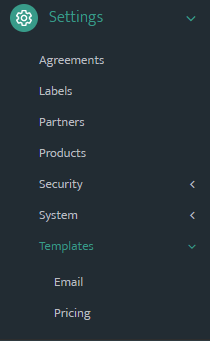
-
Go to Settings → Templates → Pricing.
-
The Pricing Templates page displays a list of templates with the following columns:
- Product: The product associated with the template (e.g., TSYS, Fiserv North).
- Name: The template name, which partners can rename.
- Description: Brief description of the template’s purpose.
- Default: Indicates if this template is the default for the product.
- Shared: Shows if the template is Global, Shared, None, or Copy to Partners.
- Status: Displays whether the template is Enabled or Disabled.
- Availability: Shows if the template is Editable or Visible-only.
- Modified By / Modified: Tracks who last edited the template and when.
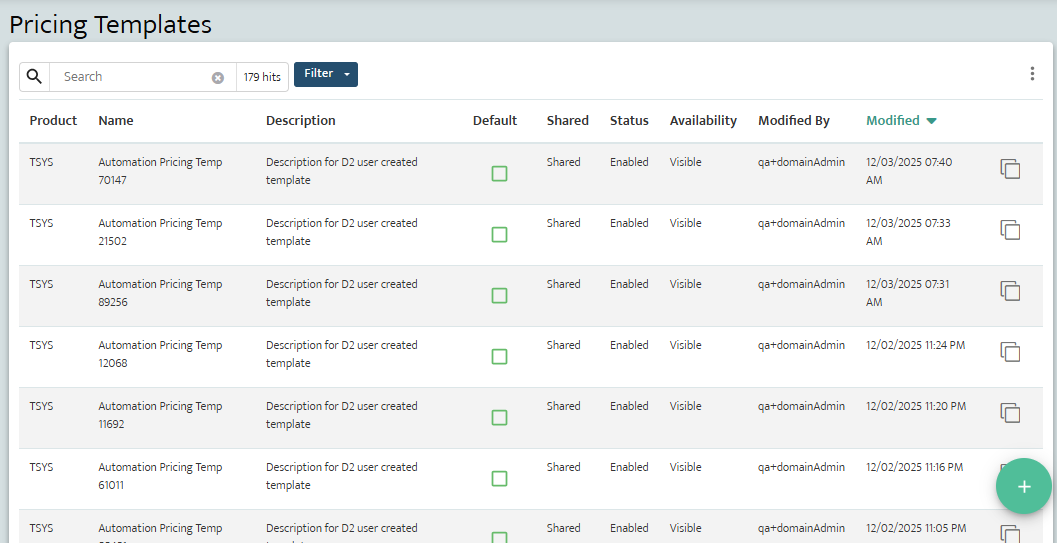
-
Select a template to open its details.
-
Use the General Tab to configure:
- Name
- Description
- Product
- Status (Enabled/Disabled)
- Availability (Editable/Visible)
- Sharing Option (Global, Shared, None, Copy to Partners)
- Default Template Setting (Only one per product)
Configuring Fees in Templates
Steps:
-
Open the template and go to the Fees Tab.
-
Click the (+ Add fee) button and configure the corresponding details.

-
To edit a fee, use the pencil icon to edit each line item. Configure:
- Category: (e.g., Authorization, Sale)
- Service Type: (Any or a specific service)
- Card Type: (Specific card brands if detailed statements are required)
- Communication Type: (e.g., IP, MXMIP)
- Calculation Option: (Per Event or Percentage)
- Amount: Partner-defined charge.
-
Click Add Another Item to include additional fees as needed.
Understanding Pricing Structures
MX Connect supports three main pricing models. Partners can configure templates for any of these models.
| Pricing Model | Description | Example Use Case |
|---|---|---|
| Flat Rate | A fixed percentage or amount for every transaction, regardless of card type or volume. | Simplified pricing for small businesses. |
| Pass-Through | Interchange and network fees are passed directly to the merchant. Partners set their own markup for each fee. | Preferred by merchants who want transparency and detailed statements. |
| Tiered | Transactions are classified into Qualified, Mid-Qualified, or Non-Qualified tiers, with different rates for each. | Merchants with a mix of card-present and card-not-present transactions. |
Tip: Use a table or chart in your internal documentation to compare these models visually for partners.
Tips for Leveraging Pricing Templates in App Engines
- Duplicate Instead of Starting from Scratch: Use existing global templates to save time and avoid missing required fees.
- Keep Templates Disabled Until Complete: Prevent accidental use of incomplete pricing structures.
- Use Detailed Card Types for Transparency: Itemizing card types gives merchants clearer statements.
- Validate Before Deployment: Always review templates with a Relationship Manager before making them live.
- Maintain One Default per Product: Avoid confusion by designating a single default template per product.
Best Practices
- Review Regularly: Interchange rates update every April and October. Adjust templates accordingly.
- Pass Through Costs Accurately: Ensure all interchange and network fees are added for pass-through pricing to avoid negative residuals.
- Document Changes: Keep a record of all modifications to templates for audit and troubleshooting.
- Collaborate with Relationship Management: Engage RM support for template validation and compliance checks.
Updated 30 days ago