MX™ Connect Create Email Templates
Learn how to create email templates in MX Connect to support partner onboarding and merchant communications.
Introduction
Email templates in MX™ Connect allow you to deliver consistent, branded communications across key partner and merchant workflows. From onboarding and invitations to notifications and account status updates, templates ensure the right message is sent at the right time—automatically and reliably. This guide walks you through the purpose of email templates, required configurations, and the steps to create and manage them in MX Connect.
In this guide you'll find:
- An overview of what email templates are and how they’re used in MX Connect
- A list of common workflows that rely on email templates
- Required and optional email template types
- Step-by-step instructions for creating a new email template
- Details on template fields, branding requirements, and attachments
- Workflow-specific template requirements and constraints
Create an Email Templates in MX Connect
This guide explains how to create email templates used for onboarding, invitations, notifications, and system workflows.
What is an Email Template?
An Email Template defines a reusable message sent by MX Connect during merchant and user workflows.
Templates are used for:
- Merchant onboarding
- User invitations
- Welcome kits
- Merchant closures
- Underwriting declines
- MXM/Passport communications (if enabled)
Every email template requires Email Branding.
Some templates are required for boarding:
-
Merchant Application Review
-
Welcome Kit (for acquiring products)
How to Create an Email Template
Navigate to Email Templates
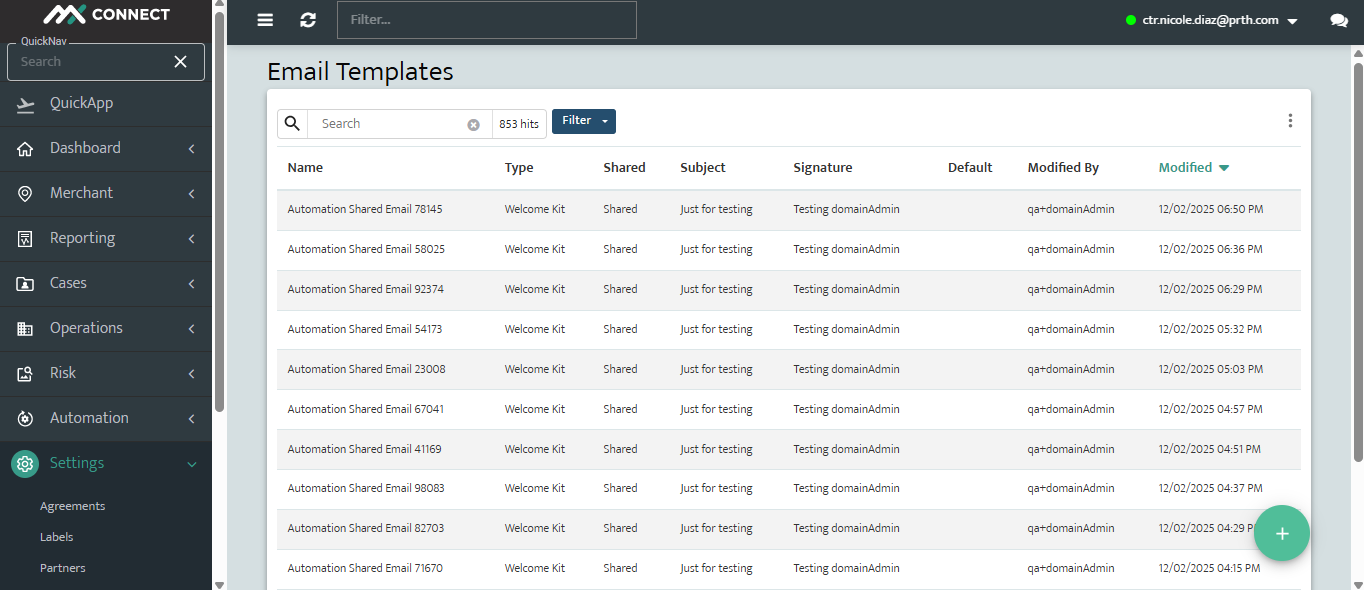
- Go to Settings in the left navigation.
- Select Templates.
- Open Email.
- Click the (+) button in the bottom right corner.
This opens the New Email Template form.
Select the Template Type
Choose the Template Type you need. Here are some template types with their description:
- Merchant Application Review: sends the Merchant Facing Application (MFA) to the merchant after an application is submitted in MXC.
- Welcome Kit: is automatically sent once a merchant or product is approved, informing them that their account is active and ready for processing.
- User Invite: sent to new partner users so they can create their MXC login
- Closure Letter: notifies the merchant that their processing account has been cloased and includes the selected closure reason.
The selected type determines which workflows use the template and what dynamic placeholders are supported.
Enter Template Details
Complete the core template fields:
| Field | Description |
|---|---|
| Name | Template identifier. |
| Branding | Required. Email Branding must exist. |
| Subject | Email subject line. |
| Content | Body text in rich text or HTML. |
| Attachments | Optional files included in the email. |
| Share Downstream | Optional; makes template available to sub-partners. |
Notes:
- Unsupported variables may render incorrectly but do not prevent saving.
- Attachments must meet system size and file type rules.
Save the Template
- Review the template configuration.
- Select Save.
After saving, the template becomes available for use in onboarding, user creation, closures, or underwriting workflows depending on its type.
Template Requirements by Workflow
| Workflow | Required Template |
|---|---|
| Merchant onboarding | Merchant Application Review |
| Acquiring product approval | Welcome Kit |
| User account creation | User Invite |
| Merchant closure | Closure Email |
| Underwriting decline | Decline Letter |
If a required template is missing, MX Connect will block the associated workflow until one is created.
Updated 30 days ago