
Clients Grid & Global Filter in MX Connect
Learn how to use the Clients Grid and Global Filter in MX Connect to search, filter, manage merchant accounts, and analyze partner hierarchies efficiently.
Introduction
This guide explains how to use the Clients Grid and Global Filter in MXC to review merchant data, manage accounts, and refine search results. These two tools work together to provide visibility into merchant accounts at every level — from headquarters down to individual sub-partners.
In this guide, you’ll find:
- A review of the Clients Grid interface and columns
- The meaning of event timestamps and account statuses
- Instructions for searching, filtering, and exporting data
- Steps for using hover-over quick actions to add Notes, Cases, Attachments, and Contacts
- A detailed explanation of the Global Filter and Label Search, including label types and hierarchy views
- Examples of combining Clients Grid filters and Global Filter labels for granular results
Clients Grid and Global Filter in MX Connect (MXC)
The Clients Grid and Global Filter in MX Connect (MXC) are key tools for managing, searching, and analyzing merchant accounts across partner hierarchies. They allow users to quickly locate merchant data, apply filters, and view hierarchical relationships between partners and their downstream accounts.
The Global Filter provides advanced filtering capabilities via labels, enabling users to drill down by risk, product, partner, or sponsor criteria.
Clients Grid
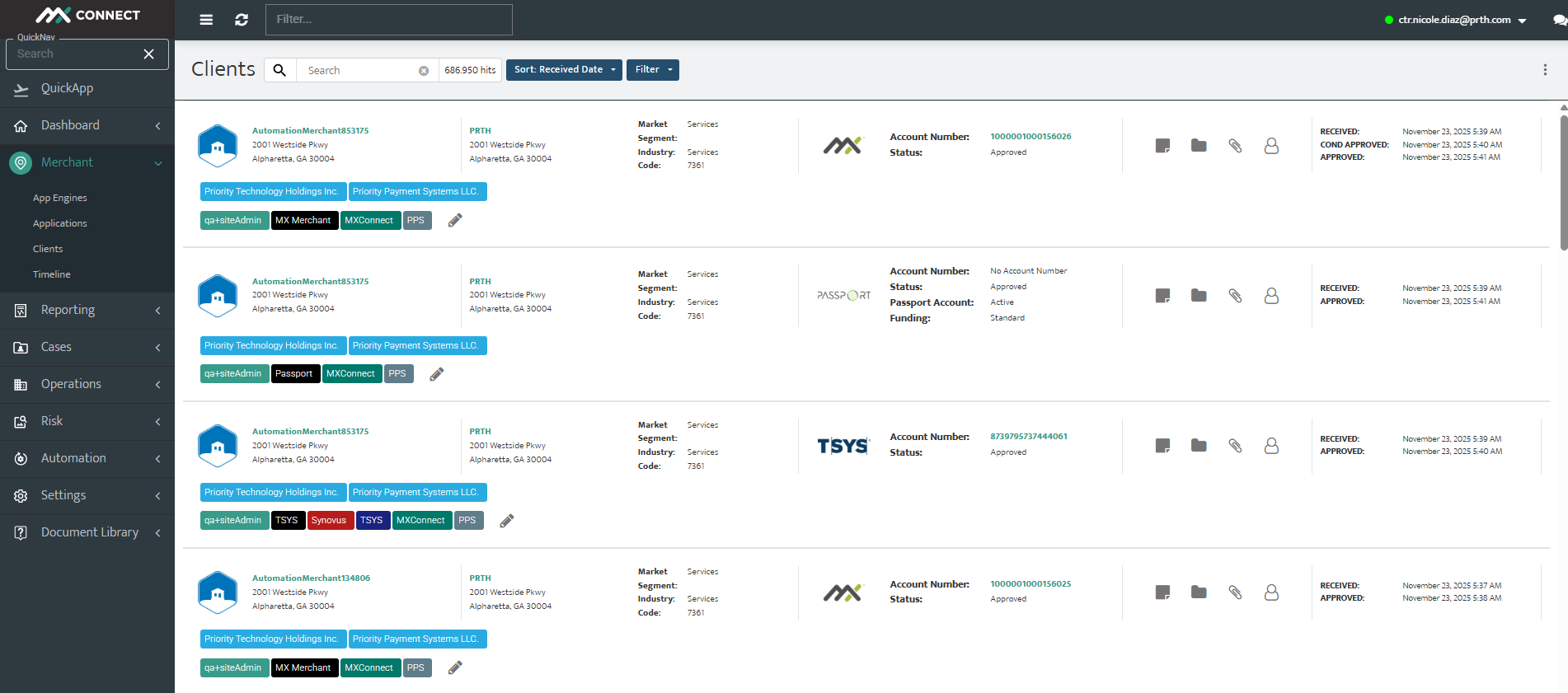
Clients Grid Overview
The Clients Grid in MXC (MX Connect) is a central dashboard displaying all merchant accounts onboarded into the system. It acts as the primary workspace for users to view, search, filter, and manage client records, and is typically where operations teams start their daily work. The grid keeps all merchant information in one place and helps track the current status of each account.
Key Features
- Status Tracking
- Tracks account lifecycle from
Received → Approved → Closed. - Allows quick reference for underwriting, risk, or operational purposes.
- Tracks account lifecycle from
- Notes & Attachments
- Hover-over functionality to quickly add notes or files.
- Supports PDFs, Excel files, or other documents.
- Case Management
- Allows creation of support cases linked to specific merchants.
- Cases act as a ticketing system for customer or internal support requests.
- Filtering & Search
- Filter by merchant name, product, location, or approval date.
- Search functionality enables precise lookups (e.g., merchant ID, zip code, labels).
- Data Export
- Export filtered data to CSV or Excel (up to 100,000 records).
- Useful for reporting and analytics.
- Hierarchy Awareness
- Displays partner hierarchies, including parent, child, and downstream accounts.
- Helps users understand scope and ownership of accounts across partners.
How the Clients Grid Works
1. Accessing the Clients Grid
Navigate to Merchants > Clients in the left-hand menu. The grid will display all client accounts, with each account shown as a row and key details in columns.
2. Key Features and Functions

- 1. Search Bar: Quickly find clients by merchant name, ID, or partial identifiers. Options allow including or excluding fields such as postal codes.
- 2. Time Picker: Filter clients by event timestamps (Received, Approved, Closed).
- 3. Filtering: Narrow down results using filters like product, partner,
status, or custom labels. - 3. Hover-Over Actions: Add or view Notes, Cases, Attachments, and Contacts without leaving the grid.
- Add Note – Record internal updates or communication.
- Create Case – Open a ticket for issue tracking.
- Add Attachment – Upload documents (PDF, Excel, images).
- Add Contact – Save or update merchant contact information.
- 4. Label Management: Add or remove custom labels for better categorization.
2.1 Event Timestamps & Account Statuses
Event Timestamps:
- Received Date: When an application moves from draft/boarding into underwriting review.
- Approved Date: When underwriting clears the merchant to process transactions.
- Closed Date: When the merchant account is terminated or stops processing.
Account Statuses: - Received: Application submitted and pending underwriting review.
- Approved: Merchant is active and processing transactions.
- Closed: Merchant account is no longer processing; historical data remains accessible.
These timestamps and statuses allow users to track the onboarding journey and current account state.
3. Parent-Child Hierarchy
Partner Hierarchy & Visibility in the Clients Grid
The Clients Grid in MXC respects the partner hierarchy, ensuring that users only see data relevant to their role and position in the organization.
Visibility Rules
- Headquarters View
- Users at the headquarters (top-level partner) can view all clients (merchants) associated with every partner and all downline partners.
- Provides a comprehensive, organization-wide perspective.
- Partner View
- Standard partners can only see the merchants they have boarded themselves, as well as those boarded by their direct downline partners.
- Partners cannot see merchants or data from unrelated partners.
- Downline Hierarchy
- Each partner can view their own merchants and those of their “children” (downline partners).
- Partners cannot view data from upstream (parent) partners or other branches of the hierarchy.
Hierarchy Tree View in the Global Filter
- The Global Filter includes a hierarchy tree that visually displays parent/child relationships between partners.
- Makes it easy to filter and navigate the Clients Grid based on organizational structure.
- Allows users to quickly find merchants associated with specific partners or downlines.
How This Works in Practice
- When you open the Clients Grid, the data you see is automatically filtered based on your partner hierarchy.
- The Global Filter’s hierarchy tree allows further refinement by selecting specific partners or branches.
Global Filter & Label Search

Global Filter Overview
The Global Filter in MX Connect (MXC) is a centralized filtering tool used to search, segment, and analyze client (merchant) data. It works across the Clients Grid and other reporting modules, allowing users to apply multiple filters based on labels.
The Global Filter ensures that users see only relevant data according to their role and permissions.
How to Use the Global Filter
Accessing
- Located at the top of the Clients Grid or in other modules that support multi-criteria filtering.
Applying Filters
- Select desired criteria using dropdowns, checkboxes, or the hierarchy tree.
- Set a date range via the time picker if required.
- Combine multiple filters for targeted data.
- Clear all filters using the reset option to return to the default view.
Understanding Results
- The grid updates immediately to display only matching records.
- Active filters and record counts are displayed for reference.
Key Functions
1. Data Segmentation
The Global Filter allows filtering of client records using multiple criteria:
- Partner: ISO, head office, or sub-partners
- Product: MX Merchant, Tesus, Fiserv, or other products
- Processor: Payment processor associated with the account
- Sales Representative: Assigned sales personnel
- Status: Received, Approved, Closed, Pending, etc.
- Sponsor Bank: Banking partner associated with accounts
- Labels: System-assigned (risk, underwriting, system) or custom
- Date Ranges: Received date, approved date, last updated
Filters can be combined for precise results.
2. Partner Hierarchy
- Displays parent, child, and downstream relationships between partners.
- Allows filtering by specific partners or entire branches.
- Enforces role-based visibility: users only see data they are authorized to access.
3. Label-Based Filtering
- System Labels: Automatically applied during onboarding (e.g., risk, product, partner).
- Custom Labels: Created by users for business-specific purposes (e.g., campaigns, high-risk accounts).
- Multiple labels can be applied simultaneously to refine results.
4. Time-Based Filtering
- Allows filtering by preset or custom date ranges using an integrated time picker.
- Supports event-based filtering, such as received date, approved date, or last updated timestamp.
5. Real-Time Results
- Clients Grid and other modules update dynamically as filters are applied.
- Filtering does not require page reloads.
6. Export and Reporting
- Filtered data can be exported to CSV or Excel.
- Supports preparation of operational, compliance, and performance reports.
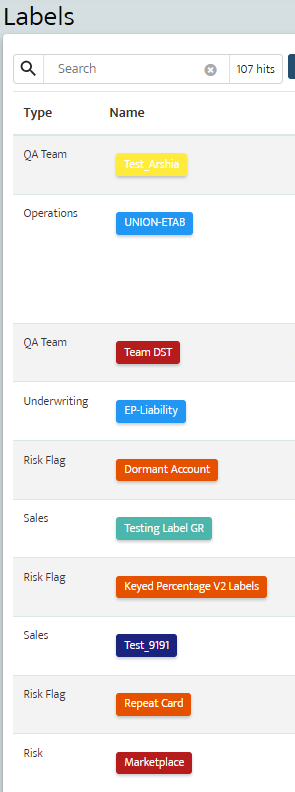
Label System
MXC supports more than 490 label types, most applied automatically during boarding and some manually applied by users.
| Label Type | Purpose | Example |
|---|---|---|
| Partner Labels | Show merchants boarded under a specific partner or downline partner. | “Wholesale Payments” |
| Risk Labels | Flag merchants for review when risk criteria are triggered. | “NDF” (Next-Day Funding), “Exceeded Monthly Merchant Limit” |
| Product Labels | Identify merchants by product boarded. | “MX Merchant,” “TSYS” |
| Sponsor Labels | Show merchants tied to sponsor banks. | “Synovus” |
| System, Funding, Custom Labels | Used internally to group accounts by logic, funding conditions, or custom rules. | Internal automation triggers |
Updated 30 days ago