
MX™ Connect Underwriting
This guide explains how underwriting works in MXC after a merchant completes the boarding process. It describes when underwriting occurs, what checks are performed, and how approval or decline decisions are made.
Introduction
This guide explains how underwriting works in MXC after a merchant completes the boarding process. It describes when underwriting occurs, what checks are performed, and how approval or decline decisions are made.
In this guide, you’ll find:
- When underwriting is triggered in MXC
- How automated and manual underwriting works
- The main types of underwriting checks
- Possible outcomes of underwriting
When Underwriting Happens
Underwriting begins after the merchant digitally signs the merchant agreement, program guide, pricing, and all required addendums.
Once the documents are signed:
- The merchant record moves from the Application area to the Clients grid.
- The status becomes Receive.
- This status indicates that underwriting must take place.
The signed agreement gives MXC permission to run all underwriting and KYC checks on the merchant.
All underwriting activity is considered post-boarding, meaning it only happens after the merchant has completed and submitted the full application.
Partner Configuration and Responsibility
Underwriting behavior is controlled at the partner level.
Under each partner record, there is a KYC tab where underwriting services can be configured.
Some partners are designated as Executive Partners (EPs). These partners:
- Carry their own risk and liability.
- Perform underwriting on their own systems.
- May have MXC underwriting checks disabled.
Most partners (such as ISOs): - Use MXC’s underwriting system.
- Have checks triggered automatically.
- Still require a human underwriter to review results and make the final decision.
How Underwriting Checks Are Triggered
Once the merchant moves into Receive status, underwriting checks are triggered.
For most partners:
- All enabled checks run automatically at the same time.
- The timestamp of the checks matches the time the merchant signed their agreement.
- No manual action is required to initiate these checks.
If checks are configured as manual: - An underwriter must click the corresponding buttons in the KYC tab to run them.
- Or the checks may be skipped entirely (for EP partners).
Automatic Underwriting
MXC allows certain partners to use automatic underwriting, where the system can approve a merchant without human review if specific conditions are met.
Setting up automatic underwriting requires configuration in two areas at the partner level: the KYC tab and the Auto tab.
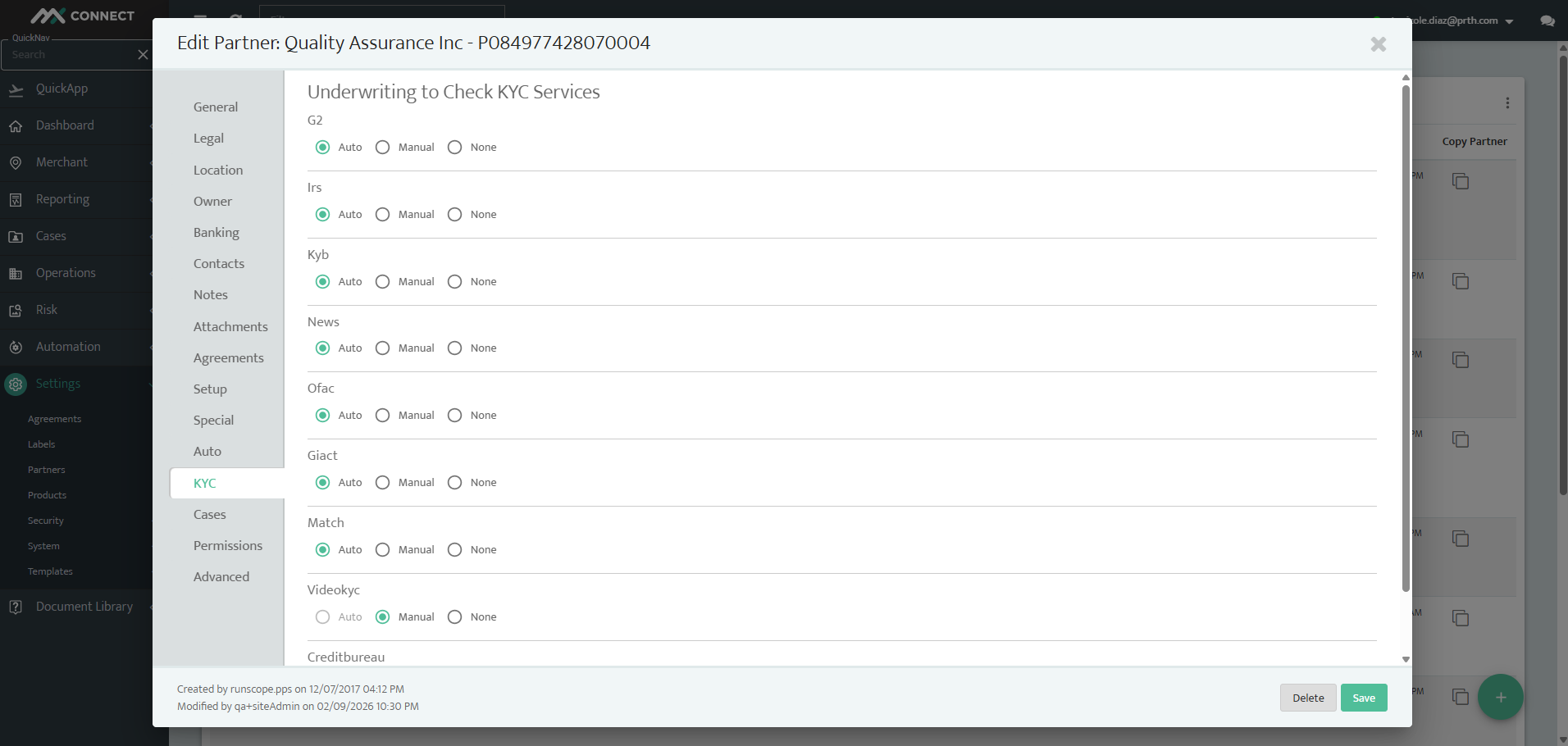
Configure Automatic Checks (KYC Tab)
- Go to Settings > Partners
- Select the Partner
- Select the KYC tab.
For each underwriting service, select how the check should run: - Auto – The system runs the check automatically.
- Manual – An underwriter must manually run the check.
- None – The check is disabled.
To support automatic underwriting, all required services must be set to Auto.
Define Auto Approval Rules (Auto Tab)
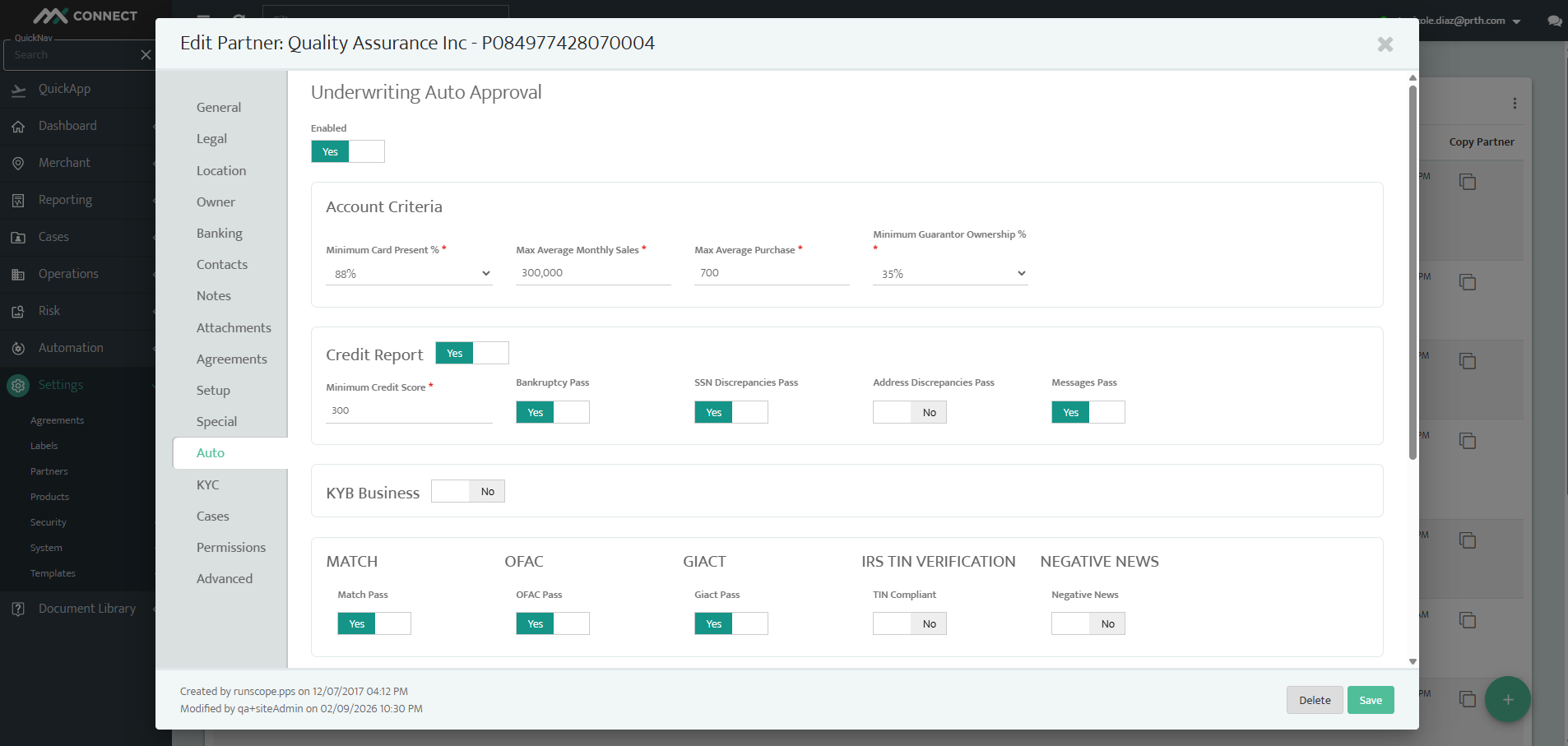
Select the Auto tab.
In this tab, define the criteria that a merchant must meet in order to be automatically approved. These criteria may include:
- Specific MCC codes
- Credit thresholds
- Required pass results for each check
- Risk and volume limits
These rules determine whether a merchant is eligible for automatic approval.
How Automatic Underwriting Works
Once both tabs are configured:
- The merchant signs the agreement.
- The record moves to Receive status.
- All underwriting checks run automatically.
- If all checks pass and all Auto tab criteria are met:
- The merchant is automatically approved.s
- If any rule fails:
- The merchant requires human underwriter review.
Manual Underwriting
Underwriting and KYC Checks
The following checks may be performed during manual underwriting. These can be automated or manual depending on partner configuration.
OFAC Check
Confirms the merchant is not on government or sanctions lists.
IRS / TIN Check
Verifies the merchant’s tax identification number.
Match Check
Checks whether the merchant appears on industry risk or fraud lists.
This is often considered a “high-risk list” and can result in automatic decline.
GK (Bank) Check
Validates the merchant’s banking information.
Credit Check
Runs a personal or business credit inquiry.
G2 Check
Reviews the merchant’s website and online presence for fraud indicators.This runs automatically only for certain MCC codes. For other MCCs, underwriters must manually trigger it.
Credit Check Reuse Logic
To avoid unnecessary impact on a merchant’s credit score:
- If a merchant boards more than once within a short timeframe (typically 30–60 days),
- MXC may reuse a previous credit report instead of running a new one.
Underwriters can still manually request a fresh credit pull if needed.
Underwriter Review
Even when all checks run automatically, a human underwriter is responsible for:
- Reviewing all check results.
- Reviewing attached documents and applications.
- Evaluating any failures, warnings, or unusual indicators.
- Making the final decision.
Underwriting is therefore automated in execution, but manual in decision-making.
Fraud and Ongoing Monitoring
Underwriting is focused on preventing fraud before onboarding, but risk monitoring continues after approval.
Once a merchant is live:
- Transactions are monitored for unusual behavior.
- Abnormal transaction times, volumes, or patterns may trigger investigation.
- Merchants may be suspended or terminated if fraudulent activity is detected.
Underwriting is the first layer of risk control, but not the only one.
Possible Outcomes
After review, underwriting results in one of three outcomes:
Approved
The merchant is cleared to process transactions.
Pending
Additional documentation or clarification is required.
Underwriting may contact the ISO or partner to request missing information.
Declined
The merchant is not approved to process.
A formal decline notice is generated and sent.
Decline Reasons and Notifications
If a merchant is declined, MXC is required for compliance purposes to send a decline letter.Underwriters select a decline reason, such as:
Credit reasons
- Bankruptcy
- Delinquent or derogatory credit
- Insufficient credit history
Non-credit reasons
- Missing documentation
- Prohibited business type
- Match list results
- Already processing elsewhere
- Application withdrawn or canceled
Once submitted:
- The system automatically generates the decline email.
- The merchant receives a formal explanation.
- The email is populated with merchant details and selected reasons.
Updated 30 days ago