
MX™ Connect Create an Agreement
Learn how to create agreements in MX Connect, configure pricing schedules, set liability, and finalize the setup so partners can board merchants.
Introduction
This guide explains how to create an agreement for a partner in MX Connect. It shows how to set agreement details, configure pricing schedules, and apply optional controls. Use this workflow to ensure a partner can board merchants under a specific product.
In this guide, you’ll find:
- How to create and configure an agreement
- How to set pricing schedules and liability
- How to finalize the agreement setup
What is an Agreement?
An Agreement in MX Connect defines the operational and financial rules that govern how a partner can board merchants and access products. Agreements specify:
- Products and services available to the partner
- Pricing schedules and all associated fee structures
- Revenue programs and financial arrangements
- Optional pricing controls
- Liability models associated with financial losses
- Any additional partner-specific rules
An agreement must be configured before a partner can board merchants under a given product.
How to Create an Agreement
Get to the Agreements Section
- Go to Settings in the left navigation menu.
- Select Agreements.
- Open Branding.
- Select the (+) button in the bottom right corner.
This opens the New Agreement configuration screen.
Configure General Agreement Settings
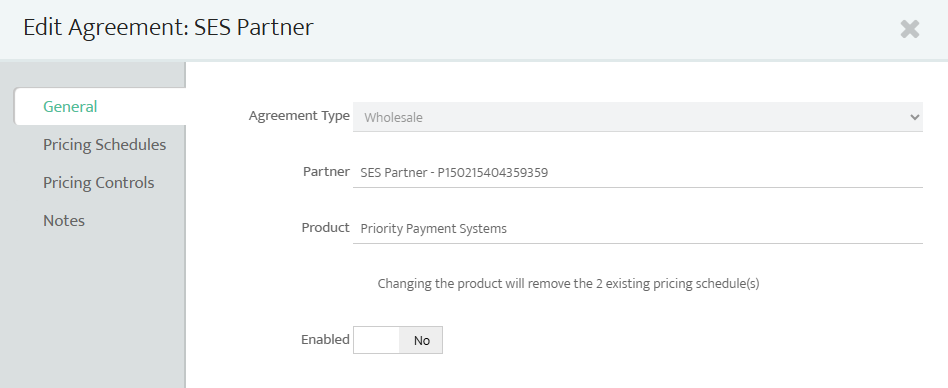
Complete the general fields:
| Field | Description |
|---|---|
| Agreement Type | Defines the commercial model (e.g., Wholesale, House Split). |
| Partner | Select the partner the agreement belongs to. |
| Product | Choose the product associated with this agreement (e.g., Tesus, MX Merchant, Fiserv). |
| Enabled | Select Yes or No depending on wether you want the agreement activated or not. |
Select Save to continue or proceed directly to pricing configuration.
Create a Pricing Schedule
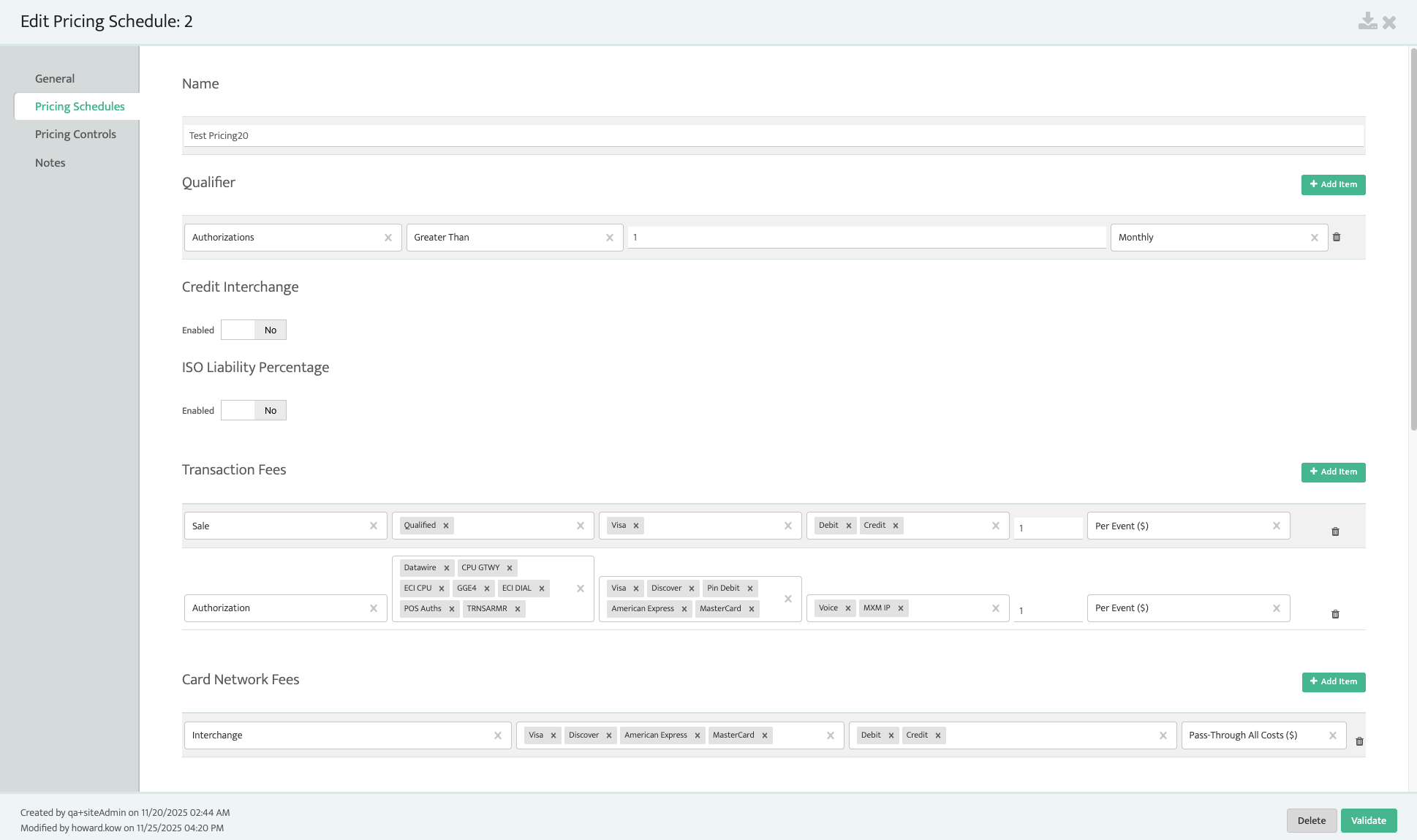
A Pricing Schedule defines the product pricing, fee structures, and liability settings used when boarding merchants.
Default and Custom Pricing Schedules
- Each agreement includes a default pricing schedule, created automatically.
- Additional custom pricing schedules can be added as needed (e.g., multiple pricing models, qualifier-based pricing, high-risk pricing variations).
To add a Pricing Schedule:
- Go to Pricing Schedules
- Select (+ Add Schedule)
Configure the following components:
| Section | Description | Actions |
|---|---|---|
| Name | Schedule name. | Free text |
| Qualifiers (Optional) | Criteria used to apply this schedule (e.g., authorization volume thresholds). | Add Qualifier |
| Transaction Fees | Fees applied to specific transaction types. | +Add Item |
| Credit Interchange | Interchange rates for credit card transactions. | +Add Item |
| Card Network Fees | Fees for Visa, Mastercard, Discover, Amex, etc. | +Add Item |
| Other Processing Fees | Additional processing or event-based fees. | +Add Item |
| Third-Party Fees | Gateway or external vendor fees. | +Add Item |
| Partner Fees | Partner-specific fees (e.g., returns, rejects). | +Add Item |
| Revenue Programs | Revenue share, minimums, reserves. | +Add Item |
| Instant Funding | Optional instant/same-day funding configuration. | +Add Item |
| Non-Recurring Fees | One-time fees (e.g., setup, early termination). | +Add Item |
Transaction Types
When adding transaction fees, the following distinctions must be configured:
| Transaction Type | Description |
|---|---|
| Sale | A completed transaction that is both authorized and settled. |
| Authorization | A transaction that receives approval but may not settle (e.g., voided authorizations). |
| Refund / Return / Void | Optional additional event types that may be billed differently. |
Each transaction type can include:
- Per-event fees
- Percentage-based fees
- Flat fees
Card Types
Pricing must also specify card categories: - Visa, Mastercard, Discover, American Express
- Credit and Debit
- Optional sub-categories depending on product or processor
This ensures correct pricing regardless of card brand or card type used.
Liability Settings
Liability settings determine who is financially responsible for losses associated with merchants assigned to this pricing schedule.
Liability is configured at the pricing schedule level when enabled.
| Value | Meaning |
|---|---|
| 0% | Priority bears 100% of financial liability. |
| 50% | Liability is split evenly between Priority and the partner. |
| 100% | Partner bears full financial liability. |
Liability can be set per pricing schedule, supporting complex or negotiated arrangements.
Add Pricing Controls
Pricing controls set limits that prevent partners from overpricing merchants.
- Got to Pricing Controls.
- Select + Add Pricing Control.
- Configure:
| Field | Description |
|---|---|
| Statement Group | Defines the transaction/merchant grouping affected. |
| Category | Fee category being controlled. |
| Calculation Options | Min/max values and default amounts. |
| Required | Marks the fee as mandatory. |
| Shared | Shares control parameters with downline partners. |
Save to apply controls.
Add Notes (Optional)
- Open Notes.
- Add internal information relevant to the agreement (e.g., contract conditions, partner instructions).
- Save notes for reference.
Finalize and Save the Agreement
- Review General Settings, Pricing Schedules, Pricing Controls, and Notes.
- Select Save.
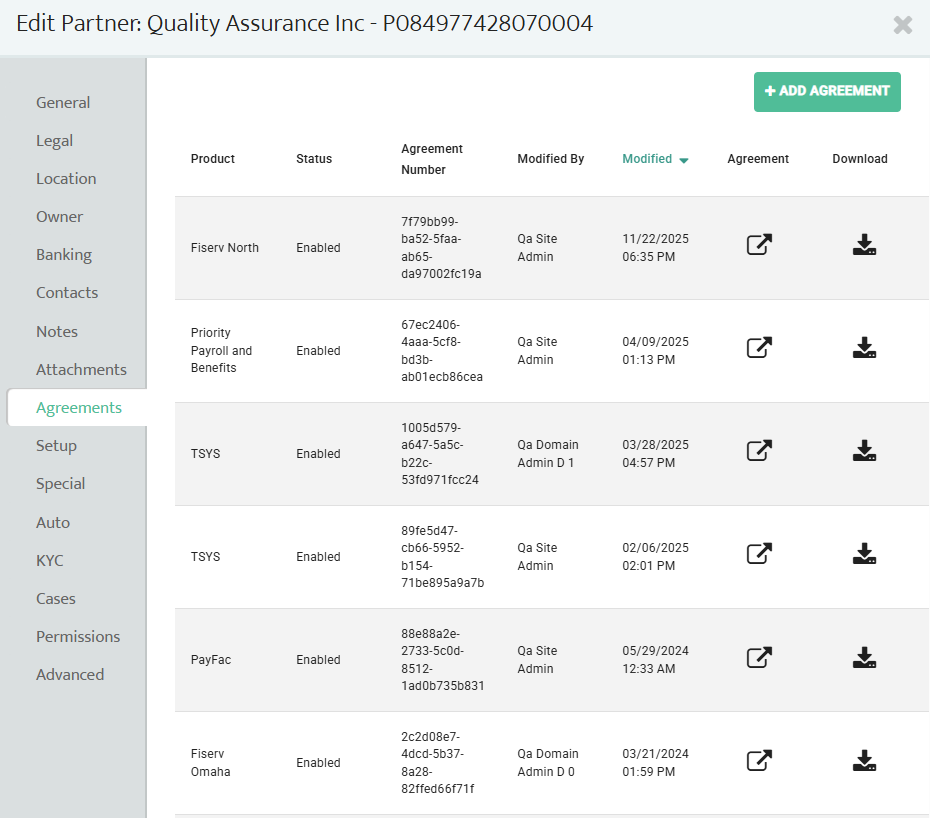
- Confirm that the product associated with the agreement now appears under the partner’s Agreements list.
Updated 30 days ago